MODIFIER SETUP
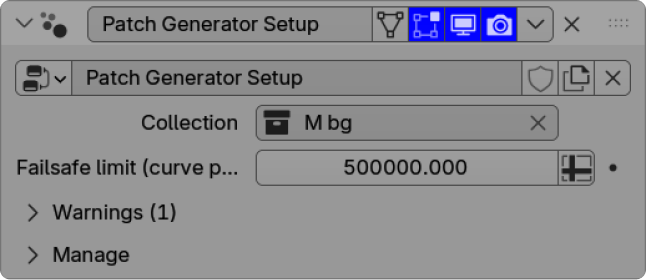
MAIN COLLECTION
Choose the source collection for the patch shape. Use the object with the largest XY footprint, usually the outline.
FAILSAFE LIMIT
Prevents overly heavy thread counts that could freeze Blender or slow down your PC.

COLLECTION
Select the collection used for this patch layer.
MATERIAL
A default material is included, but you can replace it with your own.
STROKE/FILL
Switch between a filled patch and a stroke-only border.
Set the stroke to Center, Inside, or Outside.
Controls the width of the border stroke.
MAIN NODE GROUP
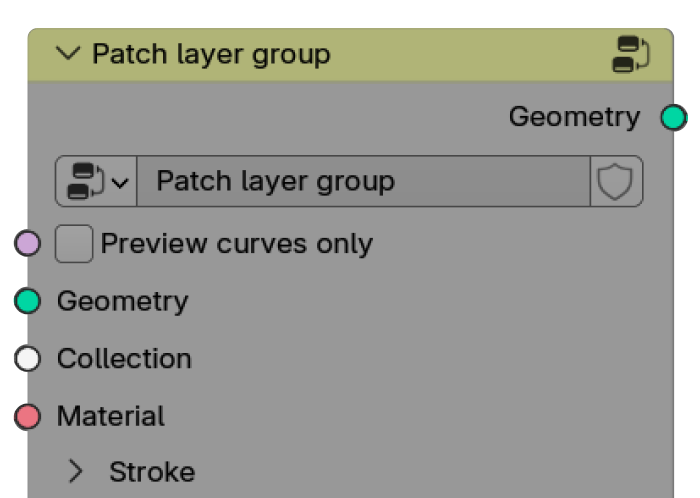
PREVIEW CURVES ONLY
Shows curves instead of full geometry for faster viewport performance. Rendered thread preview will not be visible in this mode.
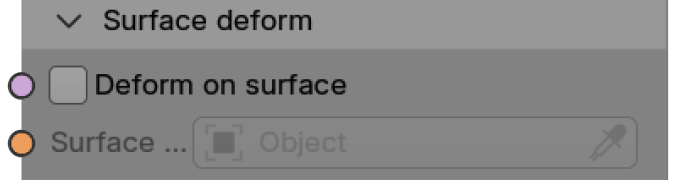
DEFORM ON SURFACE
Projects the patch onto a mesh surface.
SURFACE DEFORM
Pick the mesh the patch should follow.
Important!
The surface mesh should stay static. Animated surfaces may cause sliding or unstable results.
Tip:
Place the patch slightly above the target surface before selecting it.

NUMBER OF MAIN GUIDES
Controls the number of main thread guides. Lower values improve performance.
RESAMPLE CURVES LENGTH
Controls how much each guide is subdivided. Lower values add more detail but are heavier.
BULGE HEIGHT
Sets the height of the bulge effect.
BULGE SHAPE
Controls the falloff of the bulge, from soft to more square-shaped.
DENSITY AMOUNT
Adds more threads by duplicating the main guides.
SPREAD
Controls how far duplicated threads spread. Higher values create a messier look.
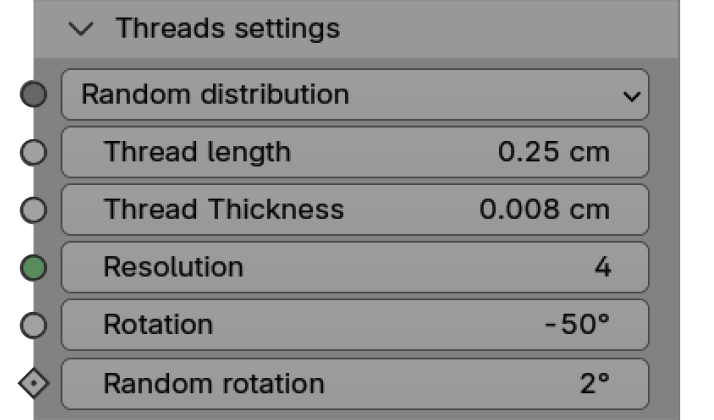
PATTERN TYPE
Choose the thread layout style. Random distribution looks less uniform than straight lines.
THREAD LENGTH
Sets how long each thread stays visible before going back in. Extreme values can look unnatural.
THREAD THICKNESS
Controls the thickness of individual threads.
RESOLUTION
Sets the thread mesh resolution. A value of 4 works well for most cases.
ROTATION
Rotates the fill pattern.
RANDOM ROTATION
Adds random rotation to individual threads for a more natural, messy result.
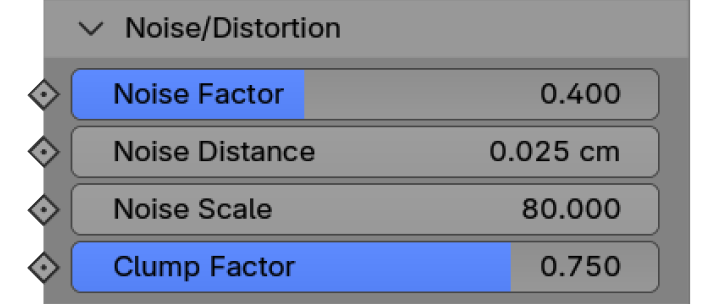
NOISE FACTOR
Adds distortion to break up the pattern and make it look more natural.
NOISE DISTANCE
Controls how far the distortion moves the threads. Higher values look messier.
NOISE SCALE
Controls the size of the distortion detail.
CLUMP FACTOR
Pulls duplicated threads toward the main guides, creating clumps at the ends.

ANIMATION TYPE
Choose between Knitting, Stretch, or Trim animation.
TARGET
Select an Empty or another object to drive the animation.
FALLOFF
Controls how softly the animation effect fades out.
HEIGHT
Sets the height offset used by the animation.
STRETCH TARGET
Select the object used to control the stretch effect.
SPREAD
Controls how far from the stretch target the effect reaches.
FALLOF
Controls how softly the animation effect fades out.
THICKNESS FALLOFF
Controls how thread thickness fades during the stretch effect.
MATERIAL GROUP

SIMPLE MATERIAL
Easily control the color, pattern scale, and bump strength in one place then plug it straight into a Principled BSDF node.